
TradingView Webhook Strategies: Automate Orders From Alerts
Turn a TradingView strategy alert into a real order on one account, or on a copy group's leader so followers copy as usual.
9 min read
A webhook strategy gives you a private URL. When TradingView fires an alert, it posts a small piece of JSON to that URL, and MimikTrader places the matching order on the target you chose: a single standalone account, or a copy group's leader. Group mode then follows the normal copy pipeline — the same one your manual trades use — so every follower gets it with their own sizing and risk rules applied.
Before you start
- A MimikTrader Pro subscription. Webhook strategies are a Pro feature. Without Pro, saved strategies are kept and new entries are not traded — but close and flatten alerts always go through, so an open position is never trapped by a plan change.
- A TradingView paid plan with 2FA enabled. Webhook alerts require Essential or higher, and TradingView will not send webhooks until two-factor authentication is on.
- A target: one standalone account, or a copy group with exactly one leader. Single-account mode cannot use an account that is already a group leader or follower. Group mode places on the leader so followers copy.
- A TradingView strategy, not an indicator. This matters more than anything else on this page — see the warning below.
{{strategy.order.action}} that only exist on strategy alerts. On an indicator alert TradingView sends those placeholders through as literal text, MimikTrader cannot read an action from them, and the signal is rejected. In the alert dialog, the Condition must be your strategy — not an indicator plot.Setting it up
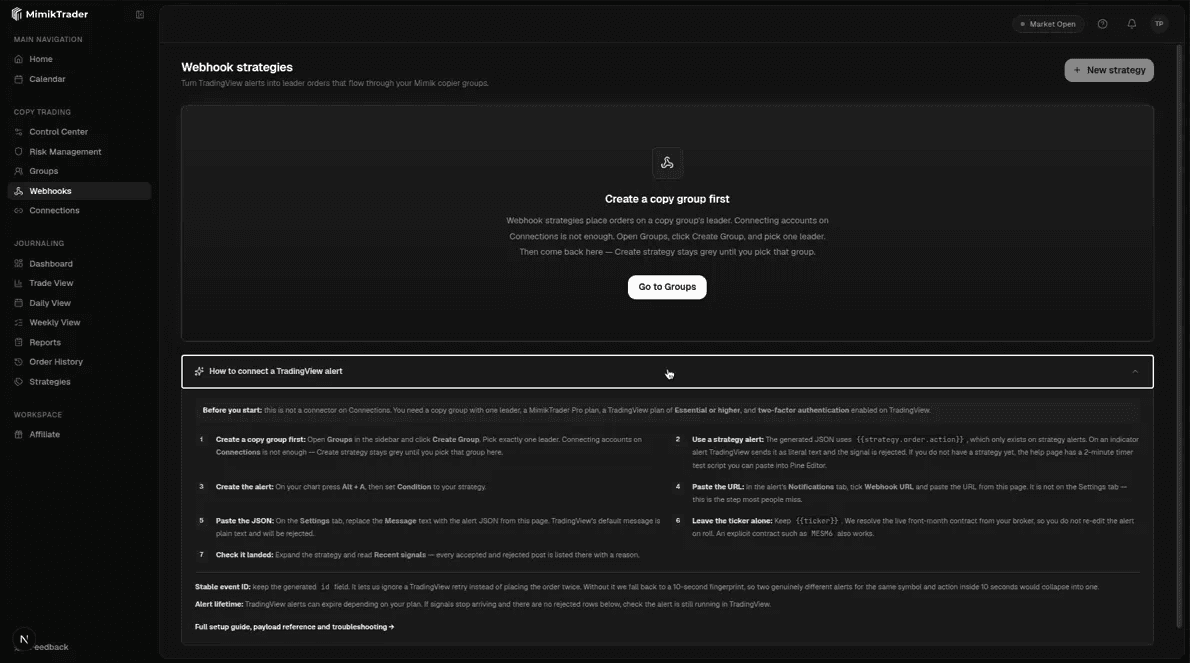
- 1
Choose Trade on
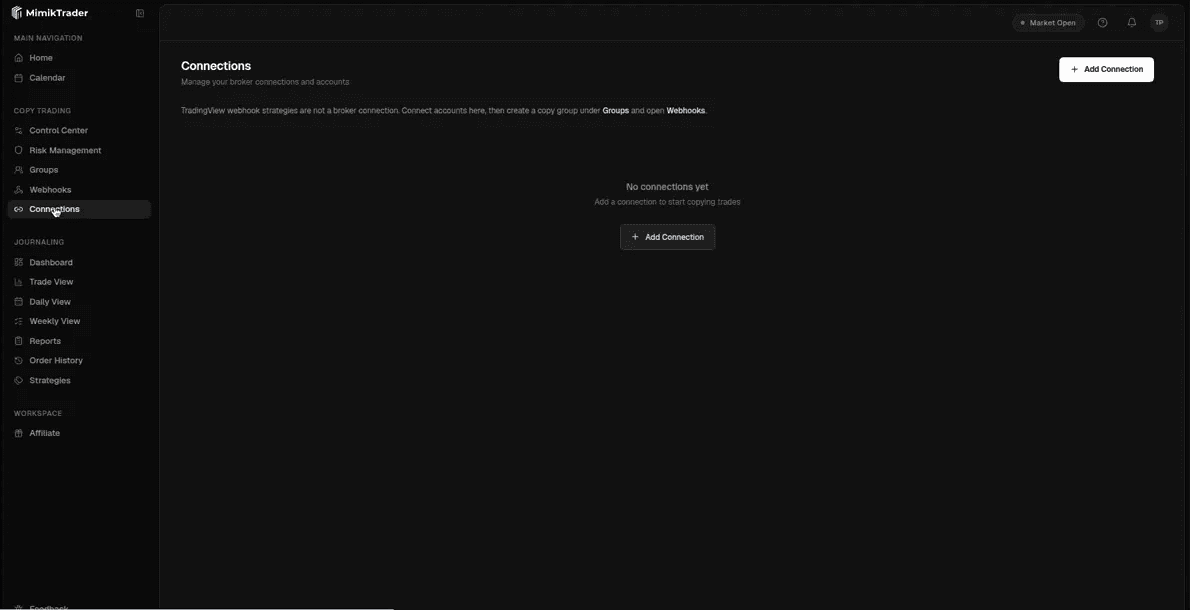
Open Webhooks and pick Single account or Copier group. Single account needs a connected account that is not in a copy group. Copier group needs a group with exactly one leader — Open Groups and click Create Group if you want followers to copy. Connecting accounts on Connections is enough for single-account mode.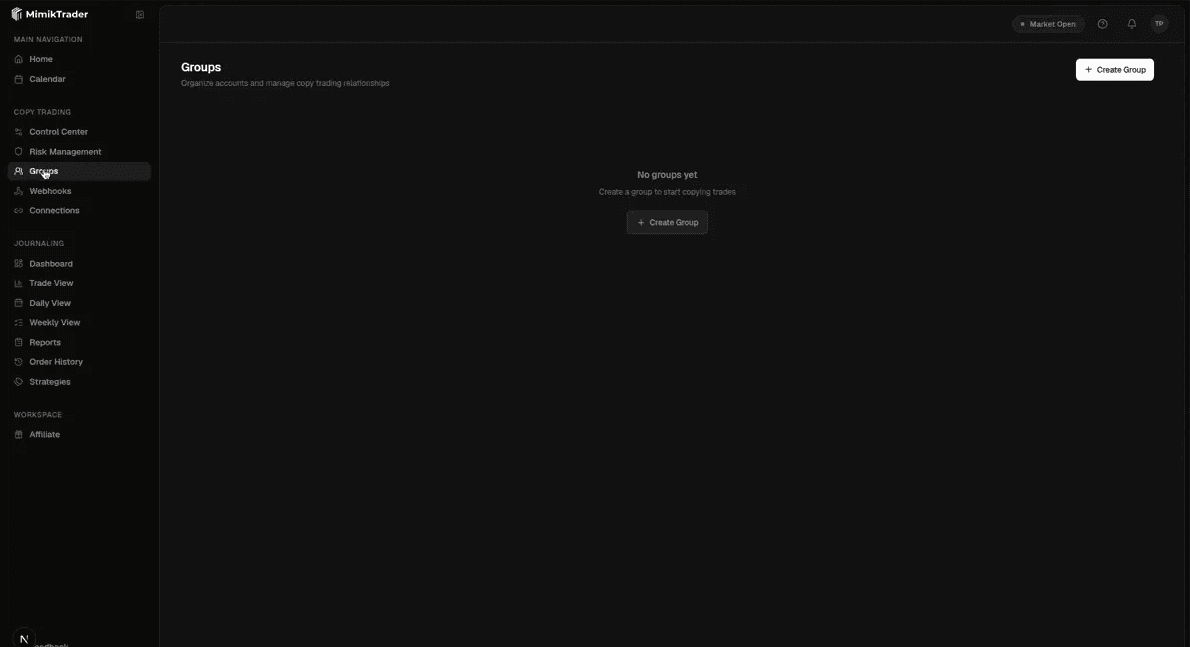
Groups: open Groups in the sidebar and click Create Group. Pick exactly one leader. - 2
Create the strategy in MimikTrader
Go to Webhooks in the sidebar and choose New strategy. Give it a name, pick Trade on from step 1, and set your order defaults — direction, size, entry type, and any take-profit or stop-loss you want attached automatically. Create strategy stays grey until both a name and that target are selected. Save. Changing or deleting a single-account assignment does not cancel broker orders or close positions — check that account before adding it to a copier group.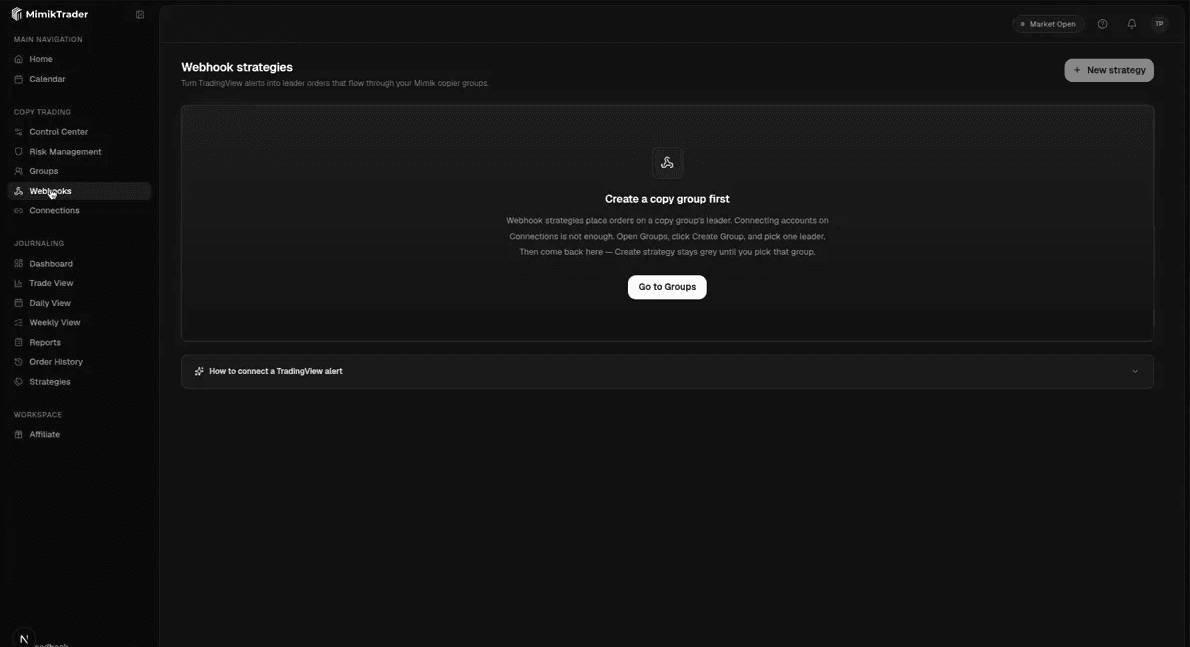
Webhooks: Create strategy stays grey until you pick Trade on — a single account or a copier group. - 3
Copy the webhook URL and the alert JSON
As soon as the strategy is created, MimikTrader shows your webhook URL and a ready-made alert JSON. Copy both. If you ever need them again, choose Reveal webhook URLfrom the strategy's menu — keep the URL private, since anyone who has it can send signals. Rotating the secret invalidates the old URL immediately and you will have to update the alert in TradingView. - 4
Create the alert in TradingView
Open your chart, add your strategy to it, then press Alt + A (or use the alarm-clock icon) to create an alert. In the Condition dropdown, select your strategy. Leave the trigger on Order fills and alert() function calls or set it to Order fills only. Do not pick alert() function calls only — the{{strategy.order.*}}fields describe an executed order, so on that setting they arrive unresolved and every alert is rejected. - 5
Paste the URL into the Notifications tab
In the alert dialog, open the Notifications tab. Tick Webhook URL and paste the URL you copied in step 3 into the field beside it. This is the step people most often miss — the webhook field is not on the Settings tab. - 6
Paste the JSON into the Message box
Back on the Settings tab, clear the Messagebox and paste the alert JSON from step 3. TradingView's default message is plain text, not JSON, and will be rejected. Then click Create. - 7
Check it arrived
Back in MimikTrader, expand the strategy and look at Recent signals. Every accepted or rejected post shows up there with its outcome and a reason. If the row says Dispatched, Mimik sent the order toward your leader — confirm it on the leader account. You can also choose Send test signalfrom the strategy's menu at any time — it runs a payload through the real pipeline without placing anything.
What goes in the Message box
The JSON we generate for you looks like this. You can paste it as-is — every placeholder is filled in by TradingView when the alert fires.
{
  "action": "{{strategy.order.action}}",
  "symbol": "{{ticker}}",
  "quantity": "{{strategy.order.contracts}}",
  "price": "{{strategy.order.price}}",
  "position": "{{strategy.market_position}}",
  "id": "{{ticker}}-{{strategy.order.id}}-{{time}}"
}
The fields
action— required.buy,sell,close,flattenorreverse. Be clear on the difference:closecloses the alert's symbol only, whileflattencloses every open position on the leader account — including positions from other strategies or manual trades. The aliaseslong,short,exitandflatare also accepted and mean buy, sell, close and flatten — soflatis account-wide too.symbol— required. The contract to trade.tickeris accepted as an alias, so an alert written for another platform that sendstickerworks unchanged. If both are present,symbolwins.quantity— optional whole number. For entries it is only used if your strategy takes its size from the signal, or you have turned on the size override. For a partial exit (a sell whilepositionstays long, or a buy while it stays short) the quantity sizes the reduction through the same rule as your entries — signal-sized strategies scale it by the multiplier; fixed-size strategies reduce the configured size per alert. Always capped at what the leader actually holds; omitted means close the full position.orderType— optional.market,limit,stoporstop_limit. Applies to the entry for buy/sell/reverse, and only when the entry override is enabled on the strategy; an explicitentryTypefield wins over it. It is deliberately ignored on close and flatten — your exit stays on the strategy's configured exit type, so a stray field can never turn a guaranteed market close into one that waits on a price. To change the exit type from an alert, use the explicitexitTypefield (with apricefor non-market exits).price— required when your entry type is Limit, Stop or Stop-limit. Ignored for Market entries.takeProfit/stopLoss— optional, and only used when the matching override is enabled on the strategy. Either a plain number (interpreted in the mode your strategy is configured for) or an object naming its own unit:{ "ticks": 40 }for a tick offset,{ "limitPrice": 5325.00 }for an absolute take-profit price, or{ "stopPrice": 5280.00 }for an absolute stop price. Note the absolute key is specific to the leg —limitPricebelongs to takeProfit andstopPriceto stopLoss. Overrides adjust the protection your strategy already has configured; they do not add protection to a strategy whose take-profit or stop is off. One constraint when mixing units: if one leg is in ticks and the other is an absolute price, the alert must carry aprice(so a market entry with mixed units is rejected) — keep both legs in the same unit on market entries.position— optional. TradingView's{{strategy.market_position}}after the fill.flatturns a buy or sell into a close.longorshortthat opposes the leader's live position is treated as a reverse — so a long-only strategy still closes the long when the chart flips short, and does not open the new short. A sell while the position stayslong(or a buy while it staysshort) is a partial exit: the leader is reduced, never rejected. Note the reduction applies to the leader's whole position in that market — same as close and flatten — and any resting stop or target keeps its original size until it is modified or replaced.id— recommended. A unique id per alert. MimikTrader uses it so a TradingView 5xx retry cannot place the same order twice. The generated id uses bar{{time}}, not wall-clock{{timenow}}, so a retry of the same fill keeps the same id. If you leaveidout, we key on the bartimewhen your JSON includes it — a retry of the same alert then always matches, and two id-less alerts for the same symbol, action and bar count as one, so a strategy that adds more than once per bar must send anid. With neither field we fall back to a 10-second fingerprint: alerts for the same symbol and action inside 10 seconds are treated as one, and a TradingView retry landing past a 10-second boundary can slip through — sendidortimeto close that.time— optional. The bar time, i.e. TradingView's{{time}}placeholder. If you are not sending anid, the bar time becomes the duplicate key: a retry of the same alert always matches it, and two different bars are never mistaken for a duplicate. Do not use{{timenow}}here or inid— it renders a fresh wall-clock value each time it is evaluated, so it cannot serve as a stable duplicate key.test— optional. Sendtrueto dry-run the webhook: the signal runs every intake check — authentication, rate limit, payload parsing, strategy enabled, trading window, direction filter, group target — then stops before dispatch and shows up under Recent signals as Skipped with the reason test signal. It proves the pipe, not the trade: broker connection, contract resolution, subscription and risk checks are not exercised, so a green test can still be followed by a failed live order for those reasons. Test posts count toward the strategy's rate limit.secret— optional, and not included in the generated JSON. Authentication is the webhook URL. If you addsecretyourself it must match; a mismatch is rejected as not found. TradingView's own docs warn against putting credentials in the alert message.
Contract symbols and roll
Leave {{ticker}}in place to trade yesterday's most active month on CME Globex. TradingView often sends a continuous symbol such as GC1! or MES1!. We pick that volume leader and place it. Use a market entry; stops and targets as ticks from the fill. This is usually the TradingView continuous, not a guarantee it is the chart underfoot or the deepest book this second.
To trade the contract on the chart, your Pine script must evaluate syminfo.current_contract and write the resulting dated name into the alert message. Customers cannot paste the literal text syminfo.current_contract into ordinary webhook JSON and expect TradingView to substitute it. {{ticker}} is the chart ticker (often GC1!), not that Pine field.
For an exact expiry, put GCZ2026 or MESM6 in the JSON. Limit and stop prices (entry or exit) only work with a dated contract. If the liquid month cannot be resolved, MimikTrader fails closed and records the reason rather than guessing.
A continuous GC alert will not open December while September is still on. Close the old GC month first (market close of GC1!, or dated GCU6). Flatten closes every product on that leader, not just gold. Reverse of GC will not run if two GC months are open; it reopens the month you just closed. Digit-leading FX such as 6E is still unsupported. On a broker we have not proven for this path, a new GC / GC1! entry is rejected; dated GCZ2026 still works.
How sizing is decided
Two settings work together, and both always apply:
- Size quantity — the base number of contracts (or, in Signal quantity mode, the size that came from the alert).
- Signal quantity multiplier — multiplied on top of that base. Results are rounded up to whole contracts, so a base of 3 with a 0.4 multiplier places 2.
For fixed sizing, the strategy card shows the resulting size in plain terms — for example Size 1 × 3 = 3 contracts — so what you see is what will be placed. In Signal-quantity mode the base comes from each alert, so the card shows the multiplier that will be applied to it (for example Signal quantity × 2). Follower accounts then apply their own multiplier on top, as they do for any copied trade.
If you do not have a strategy yet
You need a TradingView strategy on the chart — an indicator alert will not fill the placeholders. If you do not already have one, paste this timer script into Pine Editor, add it to a 1-minute chart (MES1! or MNQ1! is fine), then create the alert on that strategy. On a 1-minute chart it flips about every two minutes: buy 1 when flat, close when long.
//@version=5
strategy("Mimik webhook timer test", overlay=true,
     default_qty_type=strategy.fixed, default_qty_value=1,
     process_orders_on_close=true, calc_on_every_tick=false,
     pyramiding=0)

// On a 1-minute chart this flips about every N minutes.
minutesBetweenFlips = input.int(2, "Minutes between flips", minval=1, maxval=30)

shouldFlip = (bar_index % minutesBetweenFlips) == 0

if shouldFlip and strategy.position_size == 0
    strategy.entry("TimerLong", strategy.long)
else if shouldFlip and strategy.position_size > 0
    strategy.close("TimerLong")
Then follow steps 4–7 above. Condition = Mimik webhook timer test. Paste the webhook URL on Notifications and the JSON into Message. After the first flip, Recent signals should show a row — then turn the alert off.
Alert frequency and lifetime
- Set the frequency in your strategy code. Strategy alerts fire when the strategy generates an order, so avoid intrabar signals unless you intend to trade them.
- TradingView alerts expire after a period depending on your plan. If your signals stop arriving with no rejection rows in MimikTrader, check whether the alert expired.
- Keep the URL private. Anyone who has it can send signals to your strategy. Rotate the secret if you think it has leaked.
When something does not arrive
Expand the strategy and read Recent signals first. Most problems show up there with a reason attached:
- Create strategy is grey — you have not picked Trade on yet. Choose a standalone account, or a copy group with exactly one leader. Connecting accounts on Connections does not count as a group. For copier-group mode, Open Groups, create a group, set one leader, then pick that group on the webhook form.
- No row at all — the post never authenticated. The URL is wrong or the secret has been rotated, the strategy was deleted, or the same alert was already received (a duplicate). Re-copy the URL from the strategy and re-paste it into TradingView.
- Failed, with a payload message— the JSON was not understood. The usual cause is an indicator alert, or TradingView's default plain-text message left in place.
- Skipped — the signal was understood but deliberately not traded: the strategy is disabled, it is outside your trading window, the direction is not allowed, the group is not active, the single-account assignment was removed or retargeted before dispatch, your subscription no longer includes webhook strategies (the reason reads entitlement: entry suppressed — closes and flattens still go through even then), Ignore exit alerts dropped an exit or a derived flip, or it was a test signal dry run. The reason column says which. Changing the assignment does not cancel broker orders or close positions.
- Dispatched— Mimik sent the order toward your leader. Confirm the order on the leader account. From that point it behaves like any other trade, so if a follower did not get it, the answer is in that follower's risk settings or connection state.
If TradingView shows “Timeout exceeded” but Recent signals shows a row — trust the row's status, not TradingView. TradingView cancels a webhook if the receiving server has not replied within three seconds, and it writes that error whether or not the server went on to accept the alert. So read the row: Dispatched means we really did place the order — re-entering it by hand doubles your position. Failed or Skipped means we did not place it. Pending or Processing means it is still queued — wait and refresh before acting either way.
The reverse is also worth knowing: TradingView does not retry a timeout. It only re-sends when the server answers a 5xx error (other than 504), and then at most three times. So a timeout with no row here usually means that alert is gone — it will not arrive later. One more no-row case: a duplicate-suppressedpost (an id we have already seen, or an id-less alert matching an earlier one on the same bar) is answered 200 and deliberately leaves no row — the original alert's row is the record.