Quick Start Guide: Your First Trade Copy in 5 Minutes
Go from sign-up to live trade copying in five straightforward steps.
6 min read
This guide walks you through the complete process of setting up MimikTrader and copying your first futures trade. By the end, you will have a working copy group with a leader account, at least one follower account, and active risk management protecting every follower.
Step-by-Step Setup
- 1
Create Your MimikTrader Account
Navigate to the registration page and enter your email address and a password. You will receive a confirmation email — click the link to verify your account. You won't be charged until the trial ends. A card is required to start the trial. If you cancel before the trial ends, you are not billed. The 7-day free trial gives you access to all features available on your selected plan.
- 2
Connect Your Broker Accounts
From the dashboard, open Connections and choose Add Connection → Tradovate. This opens Tradovate's secure OAuth authorization page. Log in with your Tradovate credentials and grant MimikTrader permission to view your account data and place orders on your behalf.
After authorization, MimikTrader will automatically discover all accounts under your Tradovate login. This includes personal accounts, demo accounts, and any prop firm evaluation or funded accounts linked to that login.
Repeat this step for each separate Tradovate login you want to connect. For example, if you have a personal Tradovate account and a separate Topstep login, you will authorize each one individually.
If your accounts route through ProjectX or Rithmic instead, go to Connections and choose Add Connection, then pick that broker. For ProjectX, add the connection, download the Windows ProjectX Bridge from Mimik, then click the tray icon and enter your ProjectX username and API key — keep the tray running while you trade. The dashboard does not take that key. For Rithmic, select your prop firm's Rithmic system from the list and enter the Rithmic username and password that firm issued you. Your accounts and balances appear as soon as the connection authenticates.
TipYou can connect both live and demo/simulation accounts. Many traders test their copy setup on demo accounts first before going live. - 3
Create a Copy Group
Open Groups in the sidebar and click Create Group. Give your group a descriptive name — something like “ES Morning Scalps” or “NQ Main Strategy.”
Select one of your connected accounts as the leader. This is the account you will actively trade on. All trades placed on this account will be detected and replicated to the followers.
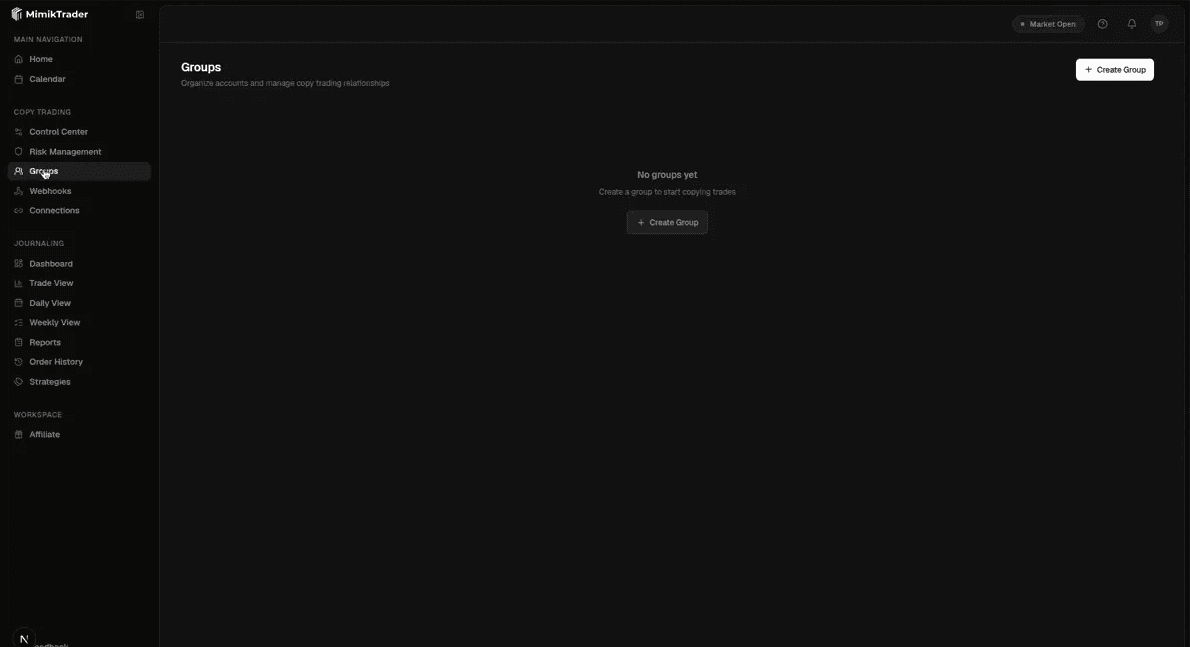
Groups: open Groups in the sidebar and click Create Group. - 4
Add Follower Accounts and Configure Risk
With your copy group created, add one or more follower accounts. Click “Add Follower” and select an account from your connected accounts list.
For each follower, configure the following settings:
- Sizing Multiplier: How many contracts this follower trades relative to the leader — 1.0 mirrors the leader's size, 0.5 trades roughly half, 2.0 trades double. See Position Sizing for the exact formula.
- Daily Loss Limit: The maximum dollar amount this account can lose in a single trading day before it is automatically flattened and locked.
- Trailing Drawdown: If your prop firm enforces a trailing drawdown, enter the threshold and starting balance. MimikTrader will track equity high-water marks and enforce the drawdown on every tick.
WarningSet your risk limits slightly tighter than your prop firm's actual limits. For example, if your prop firm's daily loss limit is $2,000, set MimikTrader's limit to $1,900. This provides a buffer to account for slippage and ensures the platform catches a breach before your prop firm does. - 5
Activate and Place Your First Trade
Make sure your copy group is set to “Active” and that each follower account is enabled. The status indicators on the dashboard will show green when everything is connected and ready.
Now place a trade on your leader account using your normal trading platform (NinjaTrader, TradingView, Tradovate's own platform, etc.). Within moments of the fill, you should see matching orders appear on your follower accounts.
Check the Activity Log in MimikTrader's dashboard to confirm the trade was detected on the leader and successfully placed on each follower. The log will show the exact timestamps, fill prices, and any risk checks that were evaluated.
Verifying Your Setup
After your first trade copies successfully, review the following to make sure everything is working as expected:
- Fill Prices: Compare the leader fill price to the follower fill prices. There will typically be a small difference (slippage) of one or two ticks on liquid instruments like ES and NQ.
- Contract Quantities: Confirm that follower accounts received the correct number of contracts based on your sizing configuration.
- Bracket Orders: If you placed a trade with a stop loss and take profit, verify that both protective orders exist on the follower accounts.
- Risk Status: The dashboard should show current P&L against each account's configured risk limits.
Recommended Next Steps
Now that you have a working copy group, take a few minutes to fine-tune your configuration:
- Review the Risk Management Overview to understand the pre-trade checks and how they protect your accounts.
- Set up daily profit targets to automatically lock in gains once an account hits a target P&L for the day.
- Consider testing with a demo account first to verify everything behaves correctly before running on funded accounts.
- If you want TradingView alerts to place the order themselves, that is a webhook strategy — not a connector on Connections. Open Webhooksand Trade on a single account, or on this group's leader. See TradingView Webhook Strategies.