Setting Up Copy Groups: Leaders and Followers
Organize your accounts into copy groups with precise control over which trades are copied and how they are sized.
5 min read
Copy groups are the central organizing structure in MimikTrader. Each group defines a one-to-many relationship: one leader account whose trades are detected, and one or more follower accounts that receive matching orders. This article covers creating groups, assigning roles, configuring position sizing, and filtering which instruments are copied.
Understanding the Leader-Follower Model
The leader account is the account you actively trade on. This can be your personal Tradovate account, a demo account, or any connected account you designate. MimikTrader monitors the leader through a real-time WebSocket connection — the instant a fill occurs on the leader, matching orders are dispatched to all active followers in the group.
Follower accounts receive the copied trades. Each follower operates independently: it has its own sizing configuration, its own risk limits, and its own enable/disable toggle. If one follower is locked due to a risk limit breach, the other followers in the same group continue to receive trades normally.
Creating a Copy Group
- 1
Open Groups
From the MimikTrader dashboard, open Groups in the sidebar. Click Create Group.
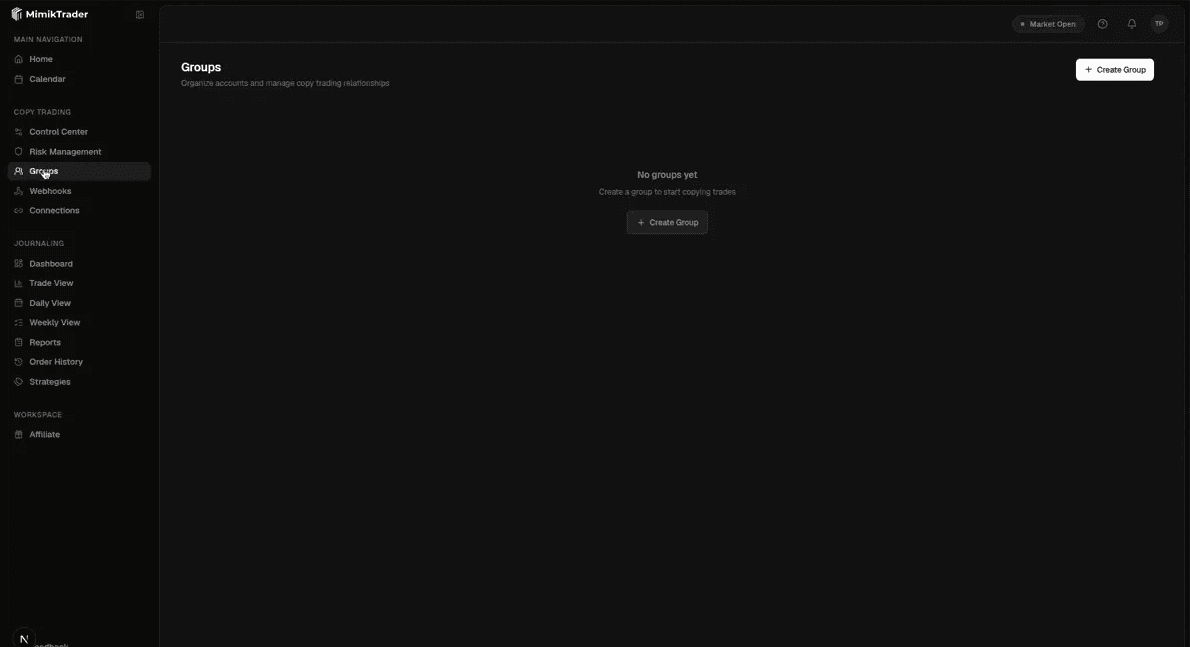
Groups: sidebar label is Groups. Click Create Group to add a one-leader copy group. - 2
Name Your Group
Enter a descriptive name for the group. Use something that helps you quickly identify the strategy or account set — for example, “NQ Scalps — Funded Accounts” or “ES Swing — Evals.”
- 3
Select the Leader Account
Choose one of your connected accounts to serve as the leader. The dropdown shows all connected accounts that are not already assigned as a leader in another group. After selection, MimikTrader will immediately begin monitoring this account for new fills.
- 4
Add Follower Accounts
Click “Add Follower” to attach accounts to this group. You can add as many followers as your subscription plan allows. Each follower is configured independently, so you can add accounts from different brokers, prop firms, or Tradovate logins.
Configuring Position Sizing
Each follower account has its own sizing multiplier that determines how many contracts are placed when the leader takes a trade. The follower's quantity is max(1, ceil(leaderQty × multiplier)) — a multiplier of 1.0 means the follower matches the leader exactly, a multiplier of 0.5 means the follower trades roughly half the leader's size (rounded up, never below 1 contract), and a multiplier of 2.0 doubles the leader's position. There is no separate fixed-quantity mode and no per-order contract cap — see Position Sizing: How Follower Multipliers Work for the full formula and worked examples.
Symbol Whitelist
By default, a copy group replicates trades on every futures instrument. Under the hood, each copy group also carries a symbol whitelist that, when set, restricts replication to specific root symbols (for example, only ES and NQ) — any other symbol the leader trades is filtered out for every follower in the group.
Managing Group State
Group Active/Inactive Toggle
Each copy group has a master toggle. When a group is set to inactive, no trades are copied for any follower in that group — even if individual followers are enabled. Use this to pause all copying during non-trading hours or when making configuration changes.
Individual Follower Enable/Disable
Each follower has its own enable/disable toggle, independent of the group state. You can temporarily disable a specific follower without affecting others in the same group. A common use case is disabling a follower account that has hit its daily loss limit while keeping other accounts active.
Locked Accounts
When a follower account breaches a risk limit (daily loss, trailing drawdown, etc.), MimikTrader automatically flattens all positions on that account and locks it. A locked account will not receive any new opening trades until the lock clears — daily and weekly locks clear at their reset, and a trailing-drawdown lock is preserved across resets. Closing and reducing trades stay allowed, so you can still manage existing positions.
Best Practices
- Create separate copy groups for different strategies or instrument types rather than mixing everything into a single group.
- Name groups descriptively so you can quickly identify them during live trading sessions.
- Test new copy groups on a demo account first before adding funded prop firm accounts as followers.
- If a prop firm account can't trade certain instruments, ask support about restricting that copy group's symbol whitelist to prevent accidental copies.
- Review each follower's risk configuration carefully. Different prop firms have different rules, and each follower should be configured to match the specific account's requirements.