How to Connect ProjectX
Install the Windows ProjectX Bridge, pair it from Connections, and type the API key only in the tray.
5 min read
Mimik never asks for your ProjectX API key. Connections only picks the firm and shows a pairing code. The installer puts Node and the tray on this PC. You type the key in that tray window.
If the bridge loses MimikTrader
If the Windows bridge stays running but cannot reach MimikTrader for 10 minutes, it flattens follower ProjectX positions so a copy destination is not left open without copy. Leader accounts are not flattened. A sleeping PC cannot do this — copy simply stops until you wake the machine and the tray is running again.
Why Mimik uses a Windows bridge for TopstepX
Topstep requires all TopstepX trading activity to originate from your personal device. VPS, VPN, and remote or cloud order placement are not allowed under Topstep's published API access policy.
The Mimik ProjectX Bridge is a small app that lives in your Windows notification area (system tray). It stays on your PC, holds your API key, and places TopstepX orders from this machine. Mimik coordinates copy logic in the cloud; the bridge executes into TopstepX locally — aligned with Topstep's device policy, not cloud order placement.
Read Topstep's API access policy
What you need
- A MimikTrader account on Windows 10 or 11.
- Your ProjectX username and an API key from Settings / API in the ProjectX platform. Reveal the full key before you copy it.
- The Mimik ProjectX Bridge installer from Connections. You do not install Node yourself. If the Microsoft Edge WebView2 runtime is missing, Setup downloads Microsoft's installer for it (Windows 11 usually already has it). Nothing else is downloaded.
- Your API key is stored only on this PC, in a file restricted to your Windows account (and additionally encrypted with Windows DPAPI where it is available), and is only ever sent to ProjectX's own gateway for your firm.
Install and pair
- 1
Add the connection
Connections → Add Connection → ProjectX → your firm → Save. Mimik shows a pairing code. It does not ask for the API key.
- 2
Download the installer
Click Download installer. That file is
MimikProjectXBridge-Setup.exe. - 3
Run the wizard
Windows may show a blue "Windows protected your PC" screen the first time you run the installer. Click More info, then Run anyway. That screen appears because the installer is not yet code-signed; the download is still verifiable — the pairing window on Connections shows the installer version and SHA-256 under Download installer, and it must match the file (in PowerShell:
Get-FileHash MimikProjectXBridge-Setup.exe).Welcome → Information → install folder (default is fine) → leave desktop shortcut and Start with Windows checked → Install → Finish. Launch the bridge on the last page.
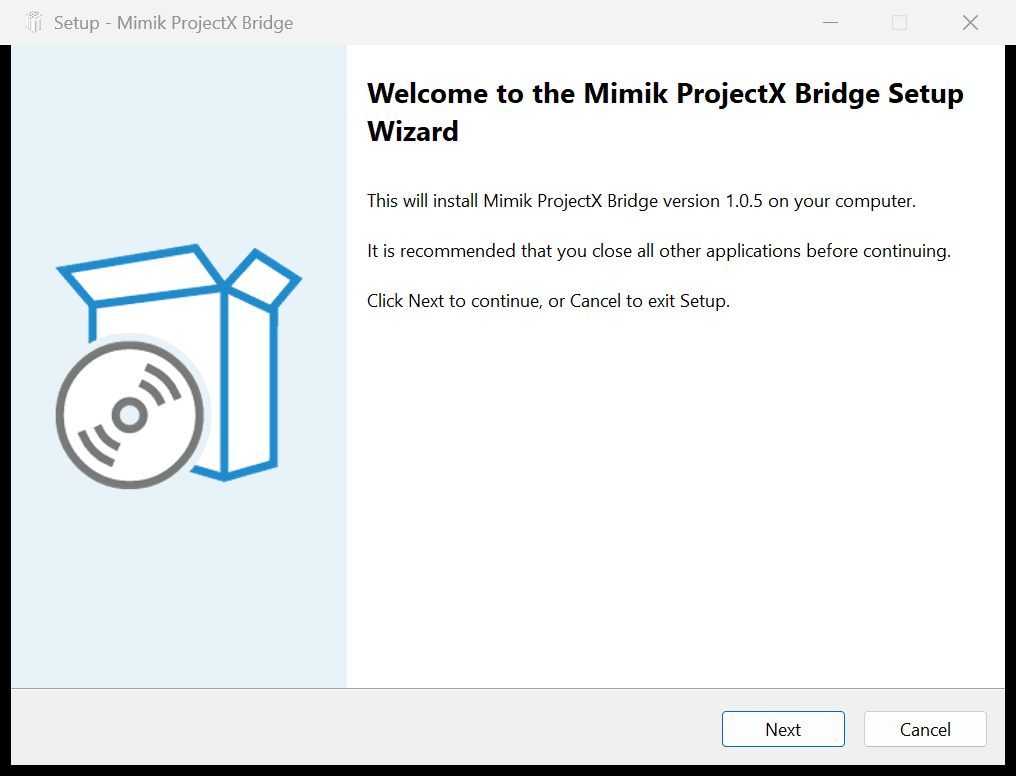
Mimik ProjectX Bridge Setup welcome page 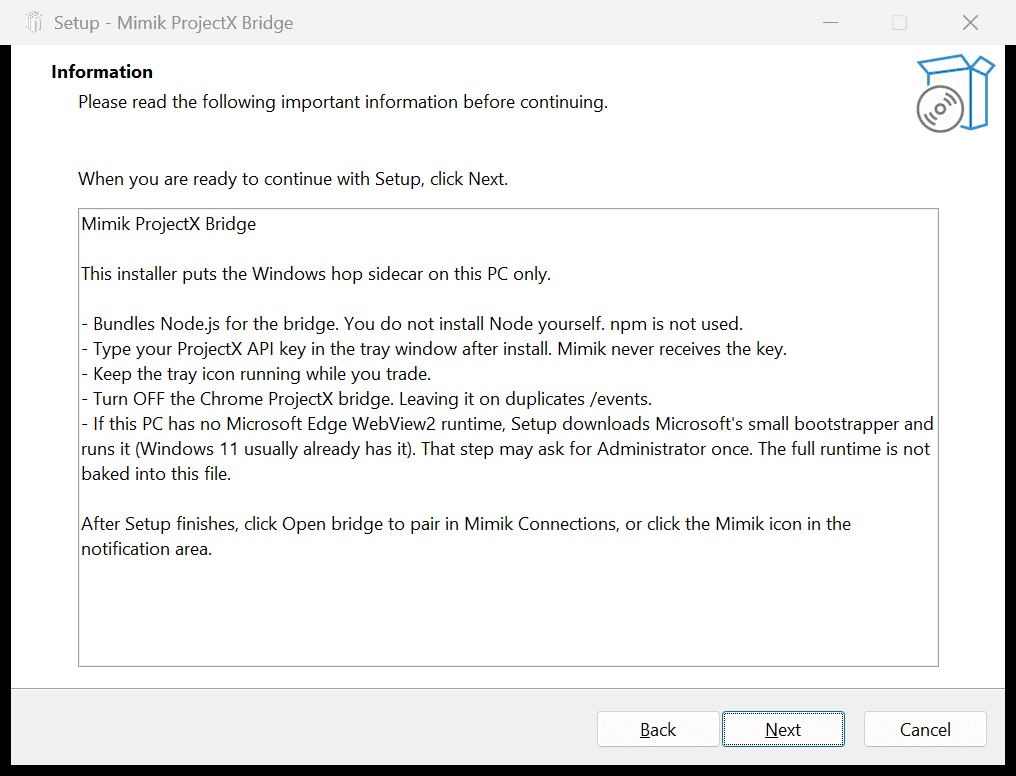
Setup information: key stays on this PC - 4
Open bridge and pair
Back in Mimik, click Open bridge to pair, or click the Mimik tray icon. Paste the pairing code if it is not filled. Type your ProjectX username and API key. Pair & start.
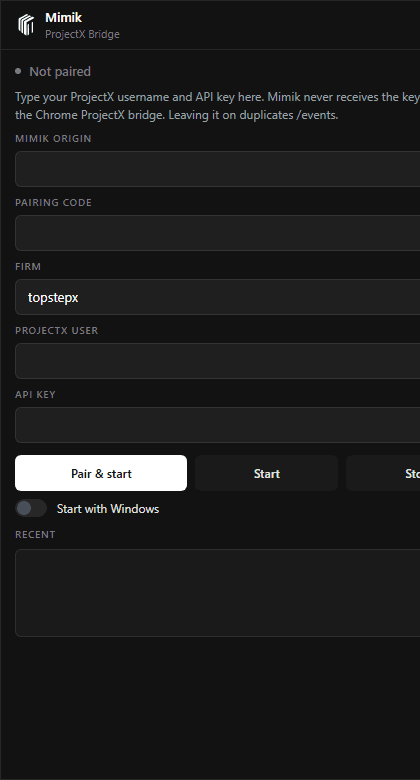
Tray window: pairing code, firm, ProjectX user, API key, Start with Windows - 5
Confirm it is ready
Connections should show Ready to trade on the ProjectX card when the tray is running and subscribed. Expand Details for Download installer, Show pairing code, and this help page.
One session per account
TopstepX allows one active session per account. While the bridge is connected through the API, also logging into the TopstepX platform (or a second browser) will disconnect one of the two sessions — and a kicked bridge cannot copy. A ProjectX account can be a leader or a follower. As a follower, the bridge places the copies into that account. Don't trade the same ProjectX account by hand while the bridge is connected.
If the card says Bridge offline or ProjectX feed down
Bridge offline means the tray is not running or cannot reach Mimik. Click the Mimik logo in the Windows notification area and Start. If the tray is still running and Mimik stays unreachable for 10 minutes, follower ProjectX positions are flattened. ProjectX feed down means the tray is running but ProjectX is rejecting its live connection — usually an API key that was changed or revoked in the ProjectX platform. Open the bridge window and pair again with the current key. If pairing expired, click Show pairing code on the card and Pair & start again in the tray (showing a new code does not stop a bridge that is already paired).
Stop in the tray is remembered: a stopped bridge stays stopped across a reboot or an update until you click Start or pair again.
Brackets on ProjectX followers
MimikTrader copies the leader's entry and exit orders to every follower. It does not currently place the leader's take-profit/stop-loss brackets as separate resting orders on your ProjectX follower accounts.
Updates
The tray checks Mimik every hour for a newer installer (/api/integrations/projectx-hop/agent/latest on the origin you paired with — never an address from a link or a web page). Click Check for updates in the tray window or the right-click menu. An idle bridge that you have not stopped applies the update itself; a bridge that is copying trades, or one you stopped, waits for that click so a live session is never restarted behind your back. Every download is checked against its published SHA-256, and once your install is a signed release the tray also requires the update to be signed by the same publisher — an unsigned or differently-signed installer is refused.